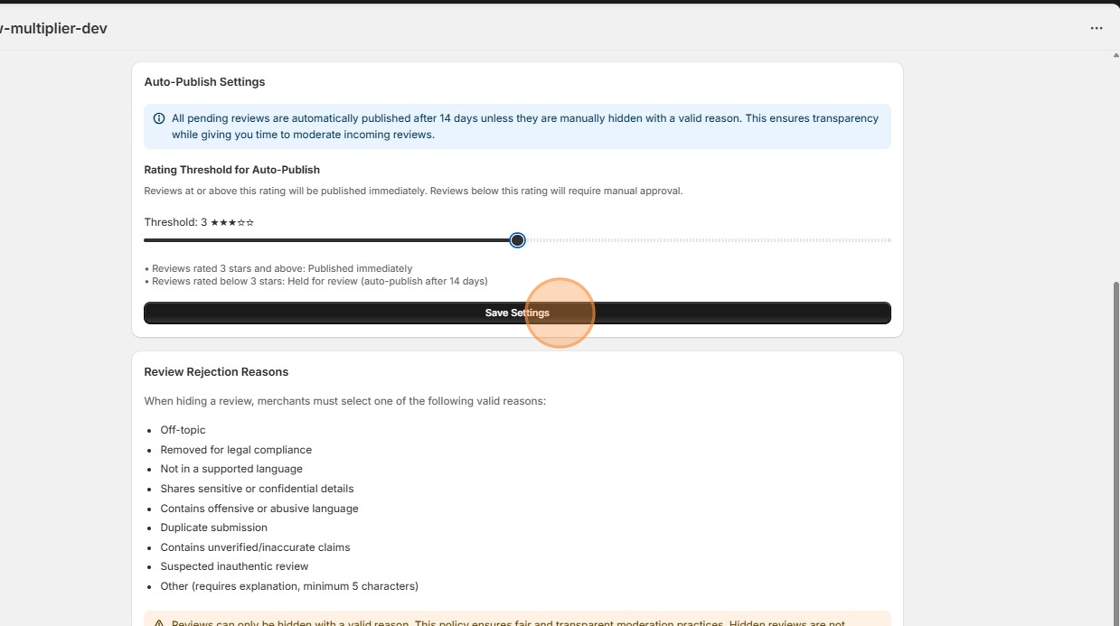
How to Moderate Reviews
To comply with Shopify's policies on review authenticity, you can only delete reviews that were imported from other platforms. Native reviews (reviews left directly on your store) cannot be deleted, but they can be hidden from display.
You can click on any review in the list to see a recreation of what the customer saw when submitting it, including the AI-rewritten versions for each platform. Learn more in Viewing Recorded Review Modals.
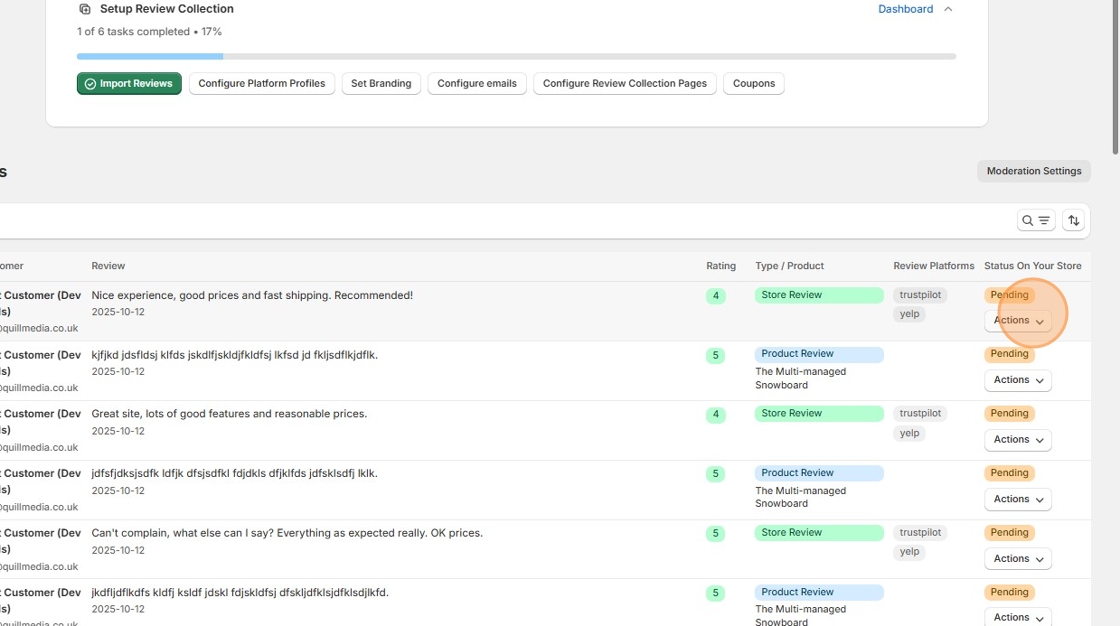
1. Navigate to the Reviews page. Let's moderate an individual review first. Click the "Actions" button:
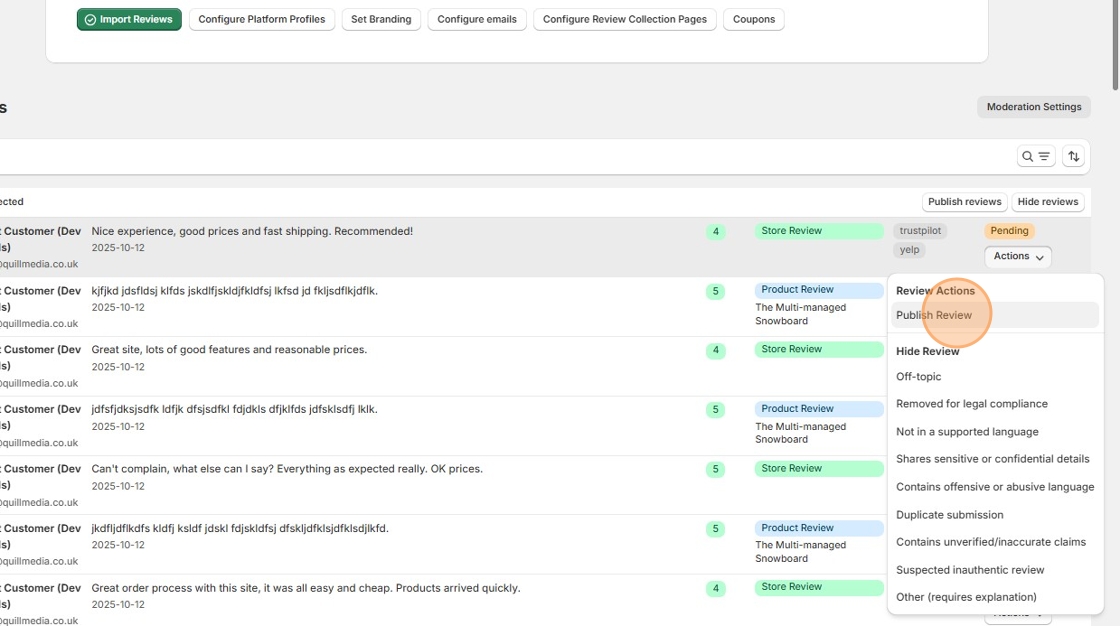
2. Click "Publish Review"
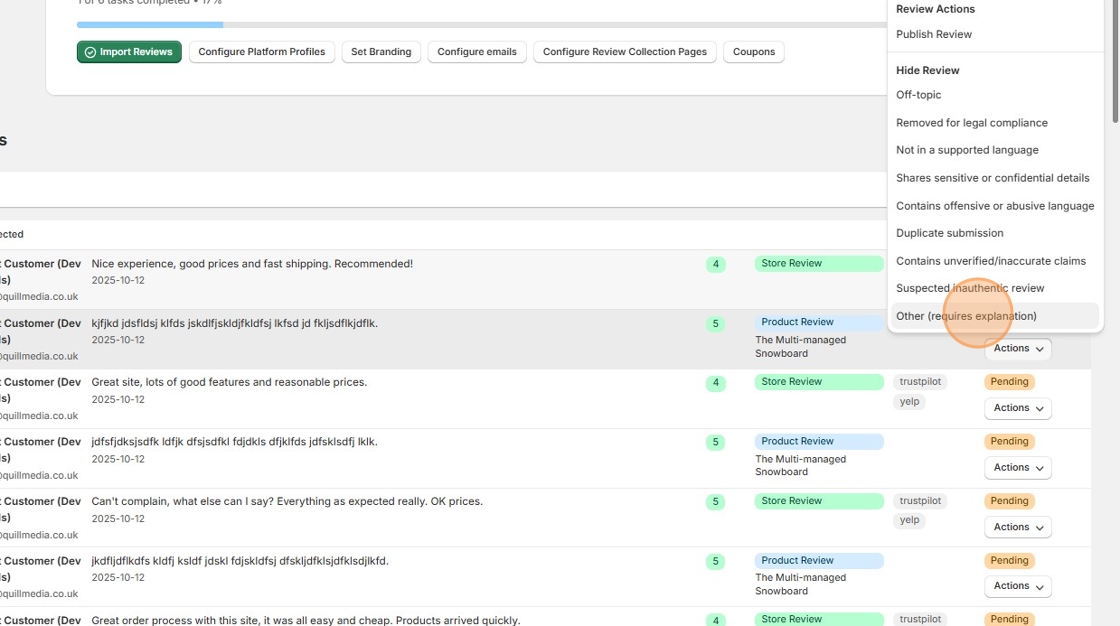
3. Click the "Actions" button on the next review to individually moderate:
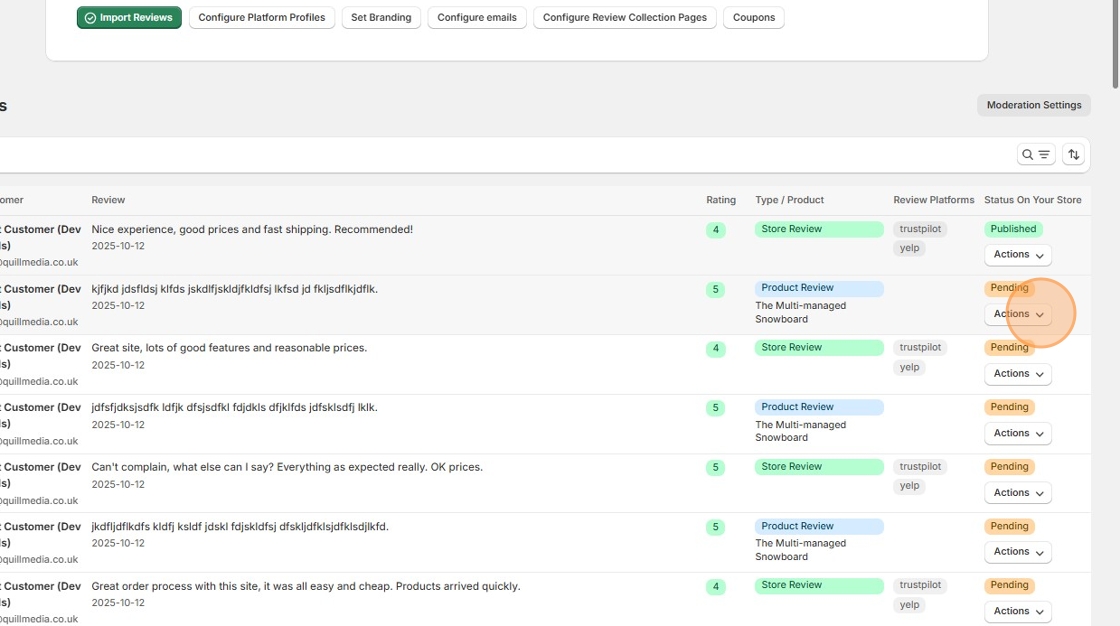
4. Click "Other (requires explanation)"
5. Click "Hide Review"
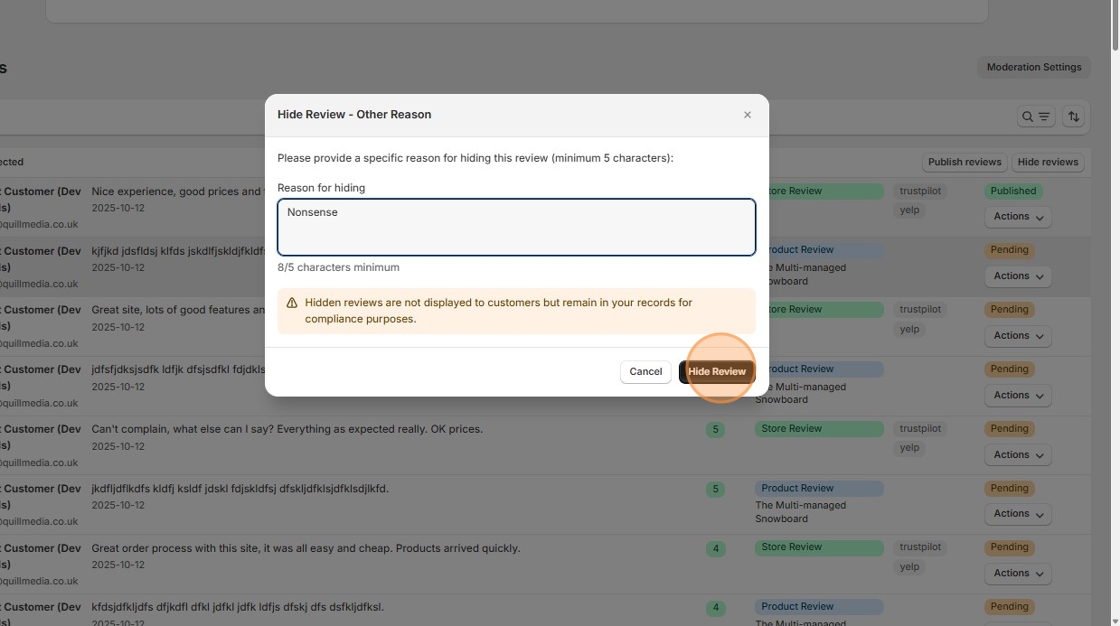
🔒 Pro plan required
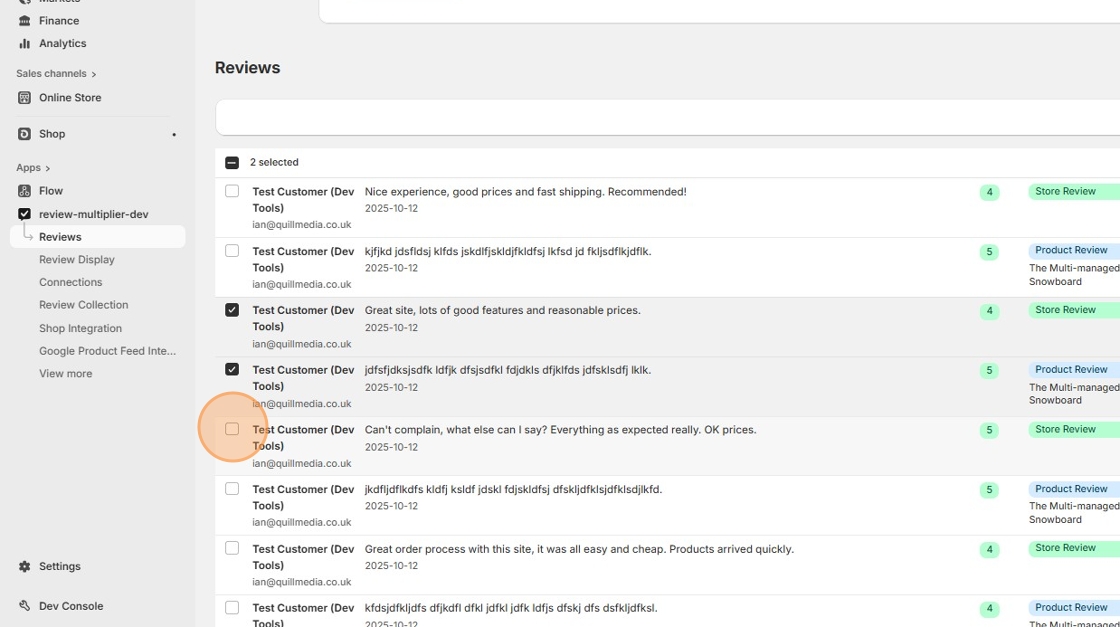
6. Now let's use the bulk moderation feature. Click several checkboxes, next to the reviews you wish to moderate:
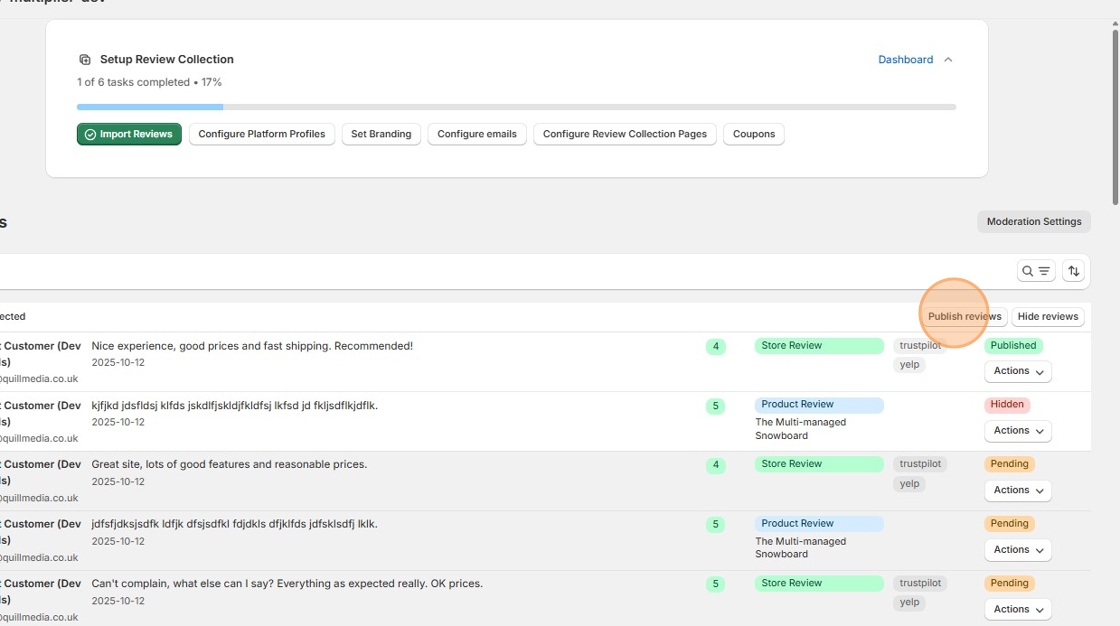
7. Here we will publish all the pending reviews that we just selected. Click "Publish reviews"
8. If you have importted any reviews using the tools on the "Import & Export" page there will be a second table of imported reviews further down the page. Scroll down to the "Imported Reviews" table.
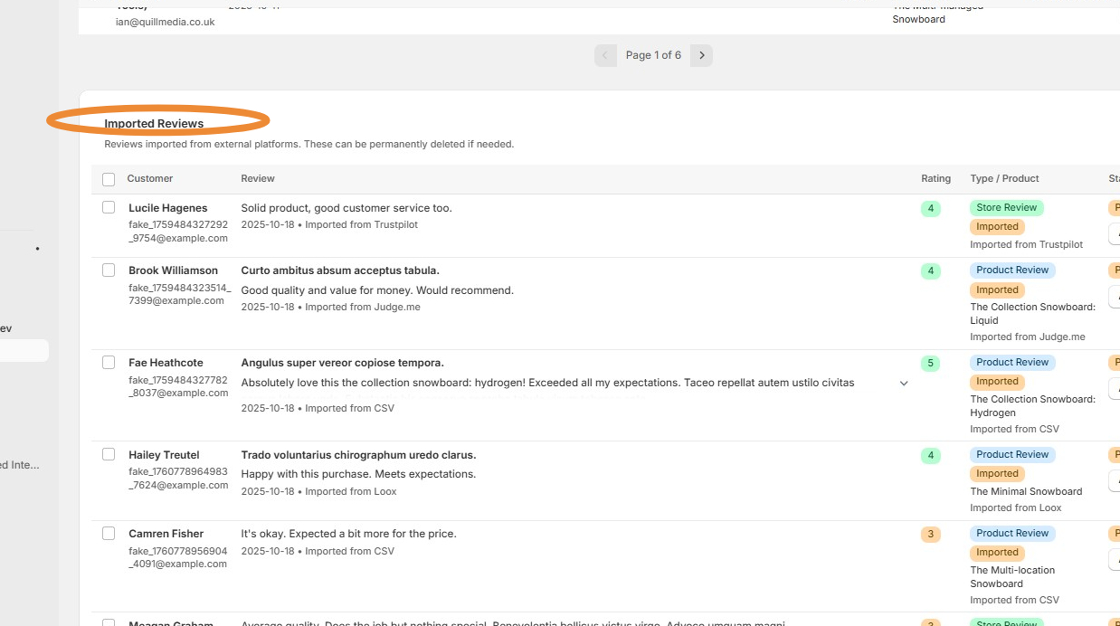
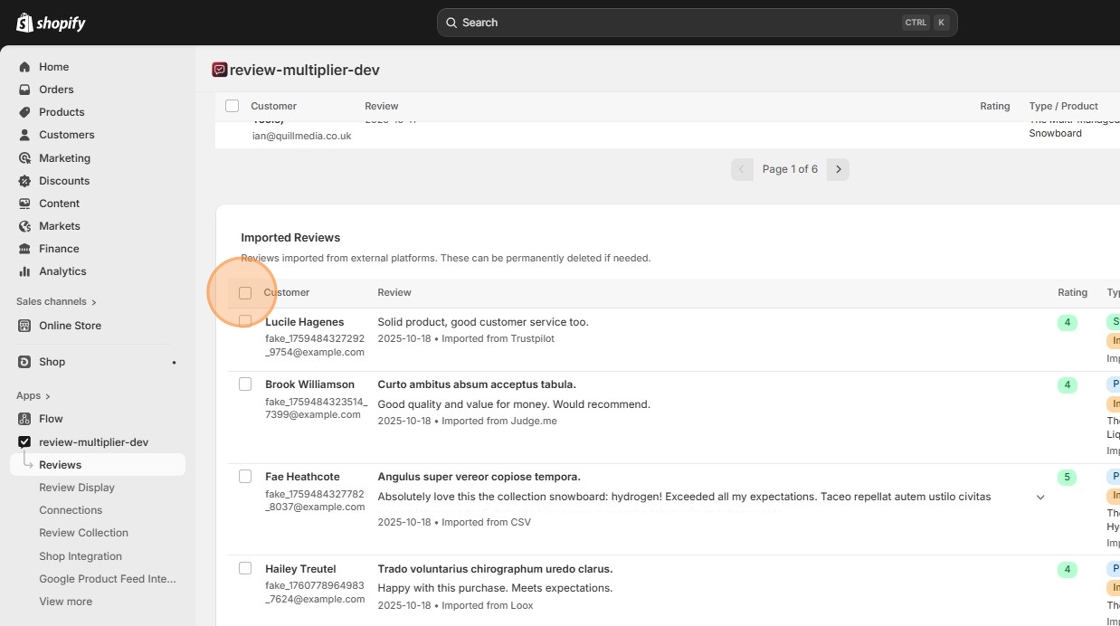
9. The difference with the first table is that with imported reviews you have the option to delete reviews rather than just unpublishing them. Let's do a bulk deletion: click the "Select all imported reviews" field.
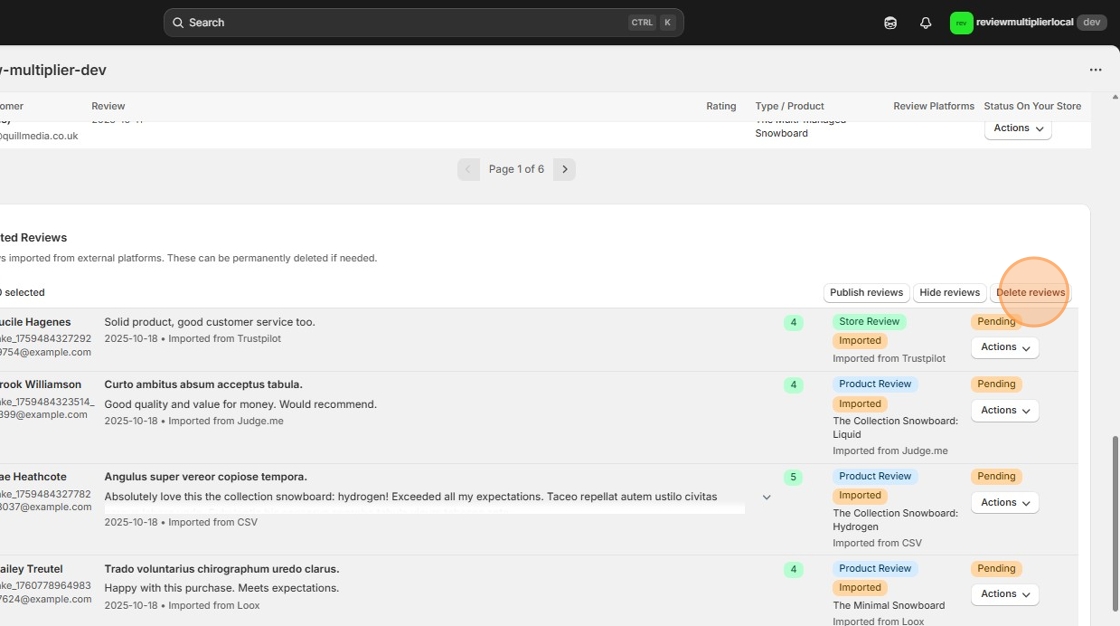
10. Click "Delete reviews"
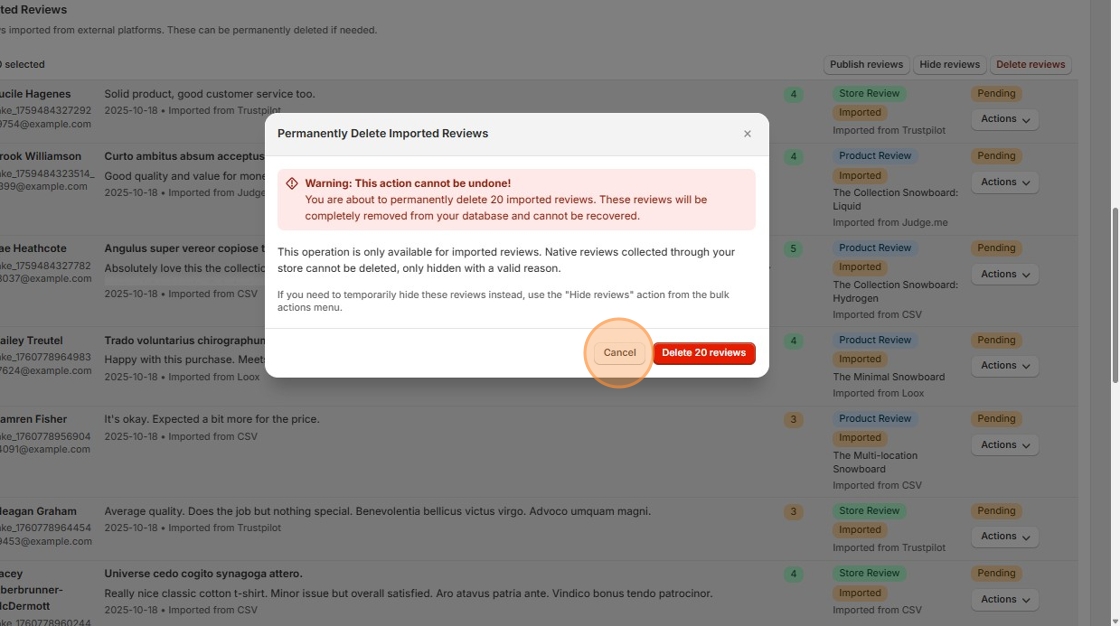
11. Click "Cancel" or "Delete 20 reviews" as you wish.
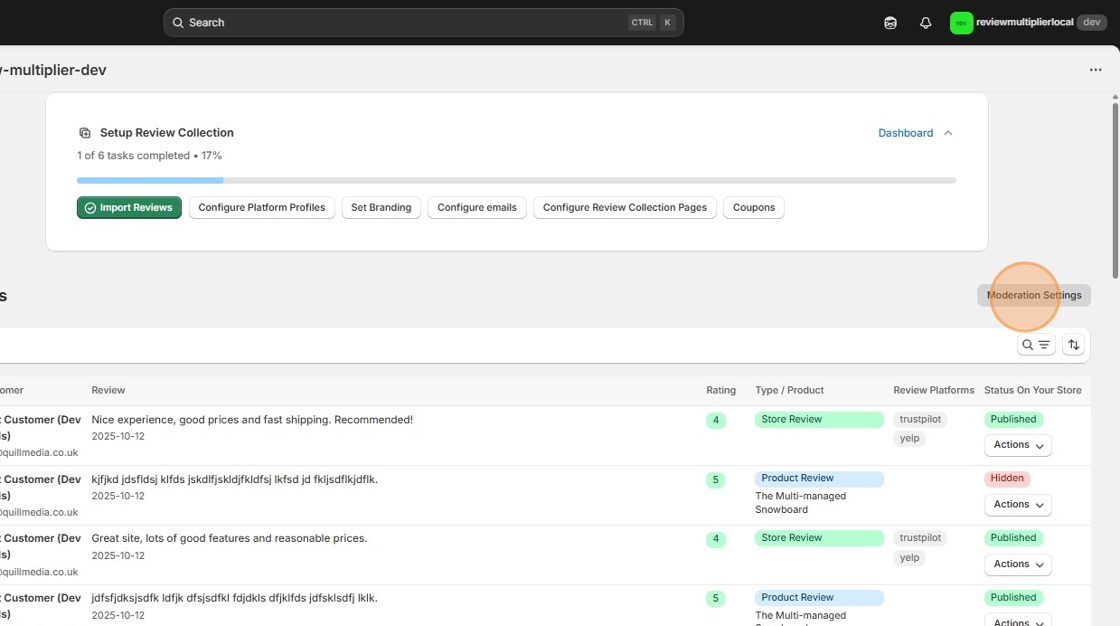
12. Now let's see the moderation settings screen. Click the "Moderation Settings" button near the top of the page:
🔒 Starter or Pro plan required
13. Change the threshold rating for auto-publishing, if you wish (it is set to 4 stars by default):
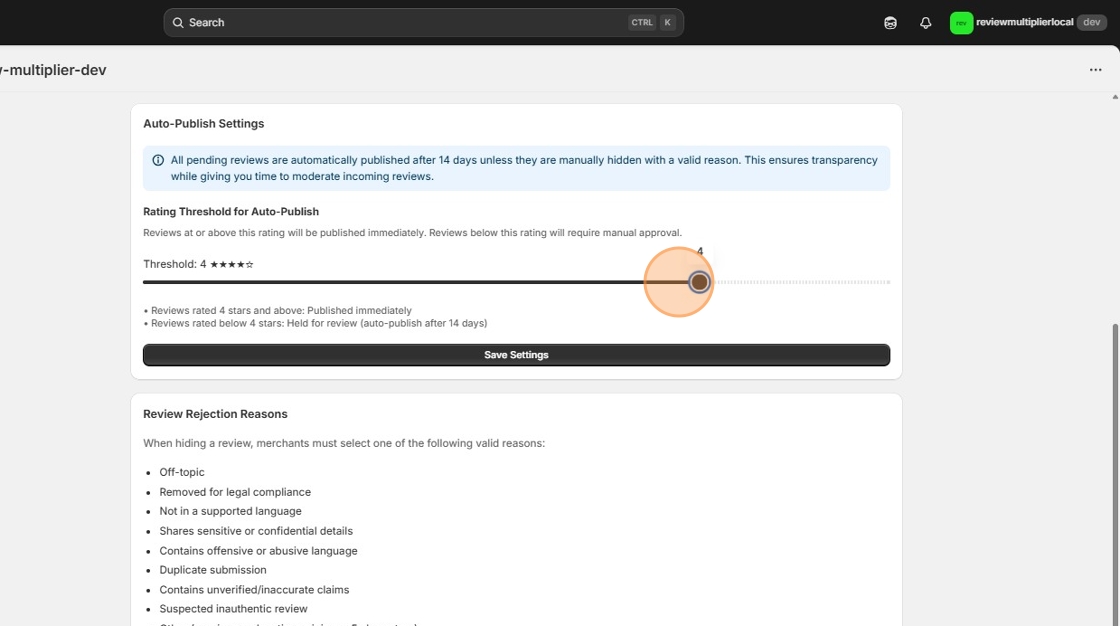
14. Click "Save Settings" then click the back button to return to the Reviews moderation screen.