Google Merchant Center Integration
Syndicate your product reviews to Google Merchant Center for star ratings in Google Shopping ads and free listings.
Introduction
Google Product Ratings display star ratings next to your products in Google Shopping ads and free listings.
Review Multiplier's Google Merchant Center integration automatically generates a Product Ratings Feed in the format Google requires, making it easy to get your reviews displayed in Google Shopping results.
For technical details about the feed format, see Google's Product Review Feed Schema v2.4.
Requirements
To display stars in Google Shopping, you need:
- Pro plan subscription in Review Multiplier
- Google Merchant Center account (free to create)
- Product feed already configured in GMC (usually via Shopify's Google & YouTube app)
- Minimum 50 product reviews across your catalog
- Valid product identifiers (GTINs/barcodes or Brand+MPN) - see Google's GTIN requirements
- Average rating of 3.5+ stars to display
Accessing GMC Integration
Navigate to GMC Integration in the left sidebar menu to access this feature.
If you see an upgrade prompt, you'll need to upgrade to the Pro plan to access this feature. View pricing plans →
Overview Tab
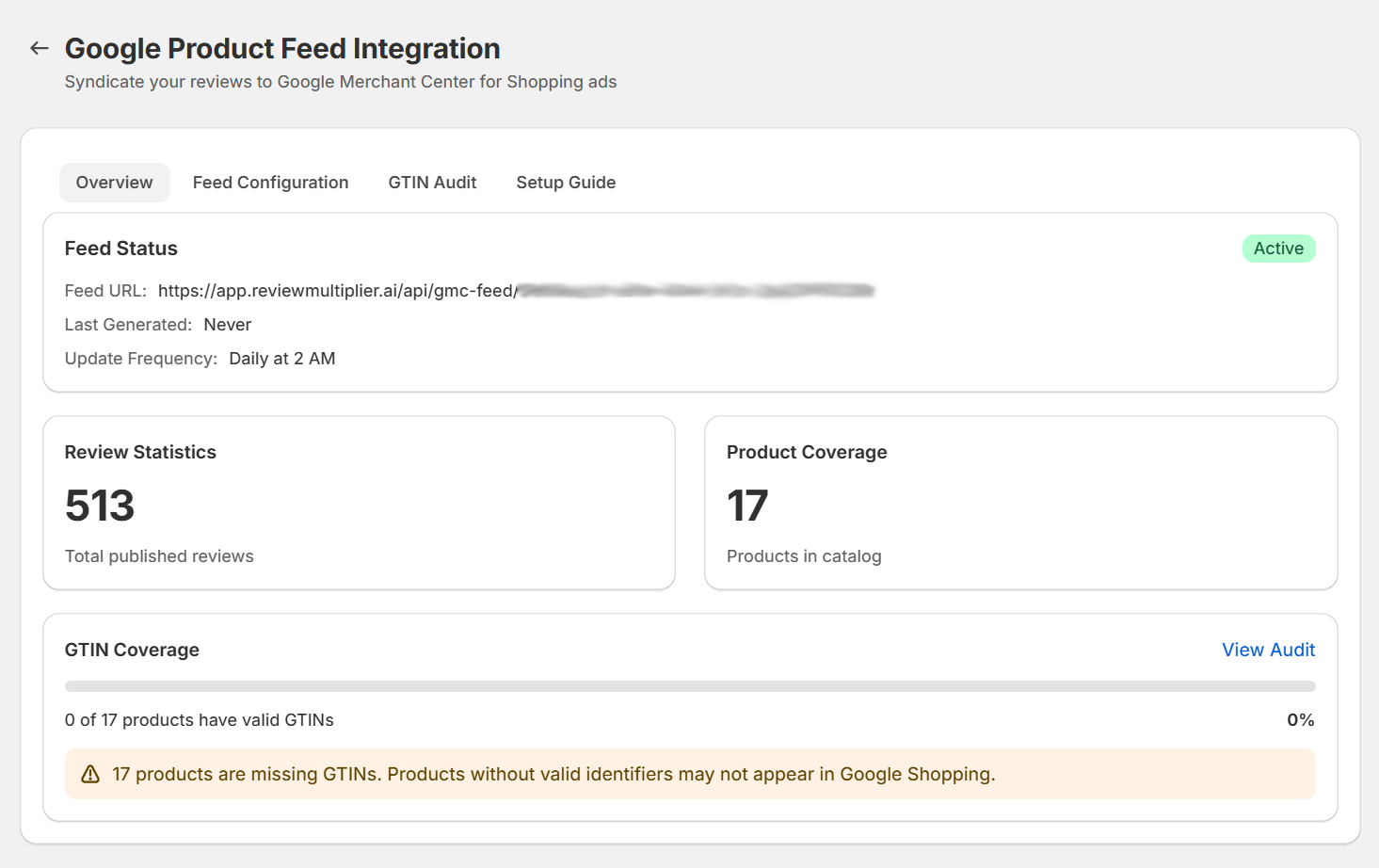
The Overview tab provides a dashboard view of your feed status and review statistics.
Feed Status
The Feed Status card shows:
- Status Badge: Active (green) or Inactive (gray)
- Feed URL: The URL where your reviews feed is hosted
- Last Generated: When the feed was last updated
- Update Frequency: How often the feed automatically regenerates
Review Statistics
Displays your total published reviews count. Only published (not pending or hidden) reviews are included in your Google feed.
Product Coverage
Shows the number of products in your catalog that could potentially have reviews syndicated.
GTIN Coverage
A progress bar visualization showing what percentage of your products have valid GTINs:
- Green (80%+): Excellent coverage
- Yellow (50-79%): Moderate coverage - some products may not appear
- Red (< 50%): Low coverage - action recommended
Products without valid GTINs may not appear in Google Shopping results. Click View Audit to identify and fix GTIN issues.
Feed Configuration Tab
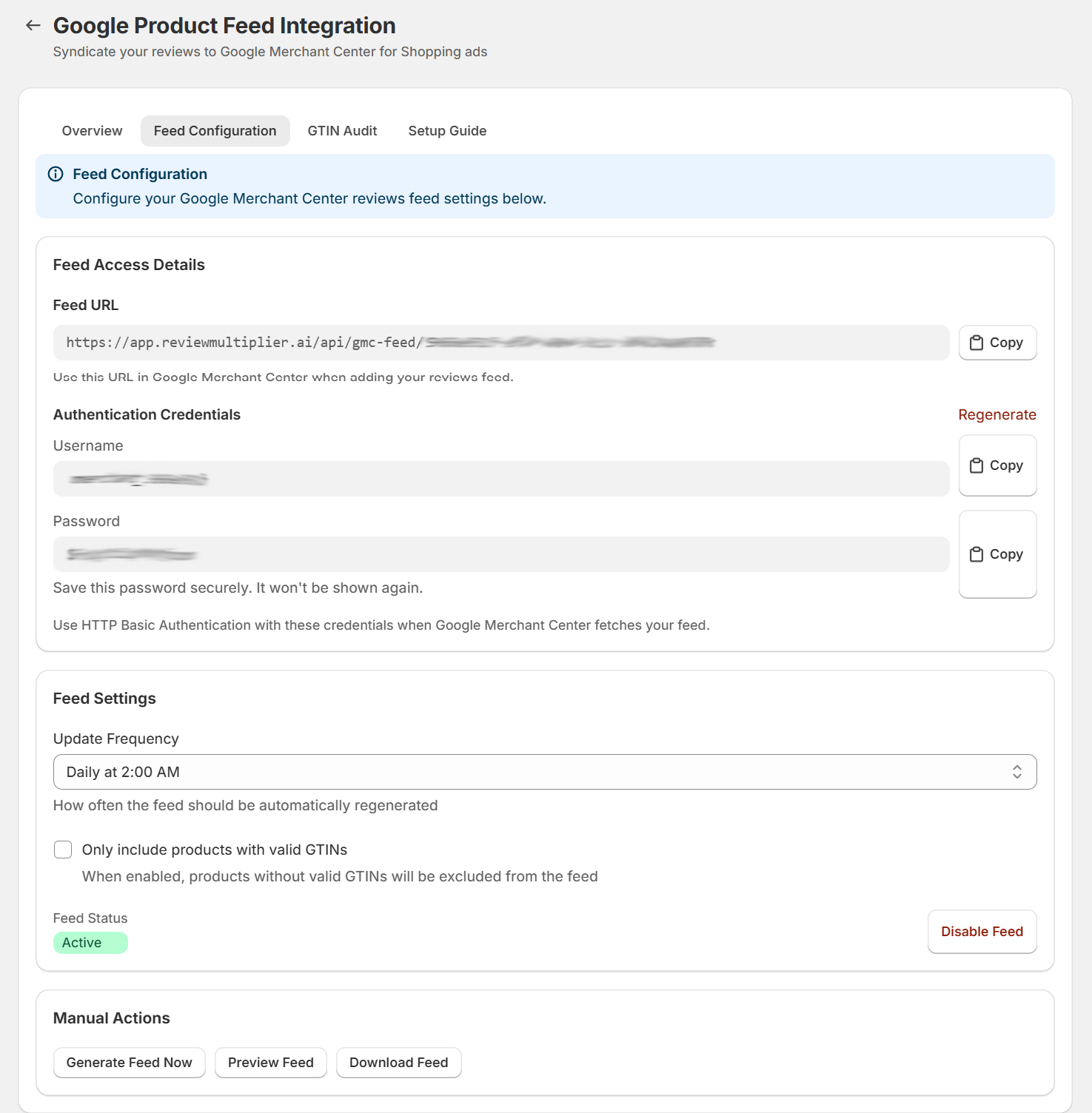
Configure your reviews feed settings and authentication credentials.
Feed Access Details
Feed URL
This is the URL you'll provide to Google Merchant Center. It follows the format:
https://app.reviewmultiplier.ai/api/gmc-feed/{your-store-id}
Click Copy to copy the URL to your clipboard.
Authentication Credentials
Your feed is protected with HTTP Basic Authentication. Google Merchant Center will use these credentials when fetching your feed.
Generating Credentials:
- Click Generate Credentials if no credentials exist
- Copy and save both the Username and Password
- Use these credentials when configuring the feed in Google Merchant Center
The password is only displayed once when generated. Save it immediately in a secure location. If you lose it, you'll need to regenerate new credentials using the Regenerate link.
Feed Settings
Update Frequency
Choose how often your feed automatically regenerates:
- Daily at 2:00 AM (recommended) - Balances freshness with server load
- Twice Daily (2 AM & 2 PM) - For stores with high review volume
- Manual Only - Only regenerates when you click "Generate Feed Now"
Only Include Products with Valid GTINs
When enabled, products without valid GTINs are excluded from the feed. This can help avoid Google Merchant Center warnings but may reduce the number of products with reviews.
Feed Status
Toggle the feed Active or Inactive. When inactive, the feed URL returns an error and Google will not be able to fetch your reviews.
Manual Actions
| Action | Description |
|---|---|
| Generate Feed Now | Force immediate regeneration of your reviews feed |
| Preview Feed | View the XML output before submitting to Google |
| Download Feed | Download the XML file for manual inspection |
You can validate your downloaded XML file using Google's XML Validation tools to check for errors before submission.
For reference, see Google's Sample Feed File to understand the expected XML structure.
GTIN Audit Tab
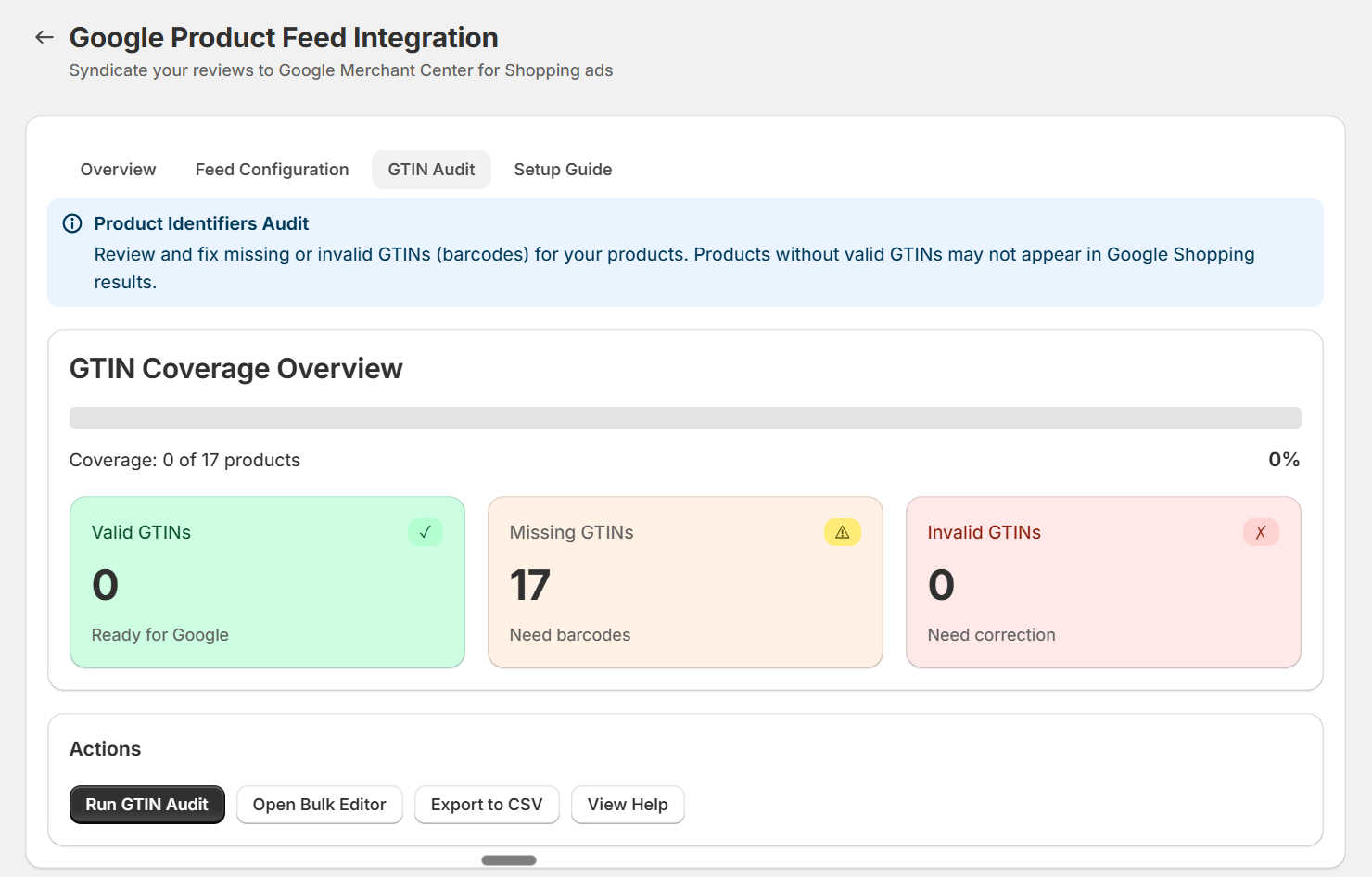
Review and fix missing or invalid GTINs (barcodes) for your products. Products without valid GTINs may not appear in Google Shopping results.
Why GTINs Matter
GTIN (Global Trade Item Number) is a unique product identifier - commonly the barcode number (UPC, EAN, ISBN). Google uses GTINs to:
- Accurately match your reviews with the correct products in Google Shopping
- Ensure your products appear in relevant search results
- Validate that reviews belong to legitimate products
For more details, see Google's GTIN requirements.
GTIN Coverage Overview
The progress bar shows your overall GTIN coverage percentage across all products.
Statistics Cards
| Card | Description |
|---|---|
| Valid GTINs (green) | Products with correctly formatted, valid GTINs - ready for Google |
| Missing GTINs (yellow) | Products with no barcode entered - need barcodes added |
| Invalid GTINs (red) | Products with incorrectly formatted barcodes - need correction |
Actions
| Action | Description |
|---|---|
| Run GTIN Audit | Scan all products and validate GTIN format and checksum |
| Open Bulk Editor | Opens Shopify's bulk product editor to add/fix barcodes |
| Export to CSV | Download a spreadsheet of products with GTIN issues |
| View Help | Opens detailed guidance on finding and adding GTINs |
How to Add GTINs in Shopify
For Individual Products:
- Go to Products in Shopify Admin
- Select the product
- Scroll to the Inventory section
- Enter the barcode in the Barcode (ISBN, UPC, GTIN, etc.) field
- Click Save
For Bulk Editing:
- Go to Products → More actions → Edit products
- Select the products you want to edit
- Add the Barcode column
- Enter barcodes for each product
- Click Save
Products Without GTINs
For custom, handmade, or vintage products that genuinely don't have GTINs:
- Option 1: Use Brand + MPN (Manufacturer Part Number) instead
- Option 2: Set
identifier_exists=falsein your product feed for truly custom goods - Option 3: Consider purchasing GTINs from GS1 if you sell at scale
Setup Guide Tab
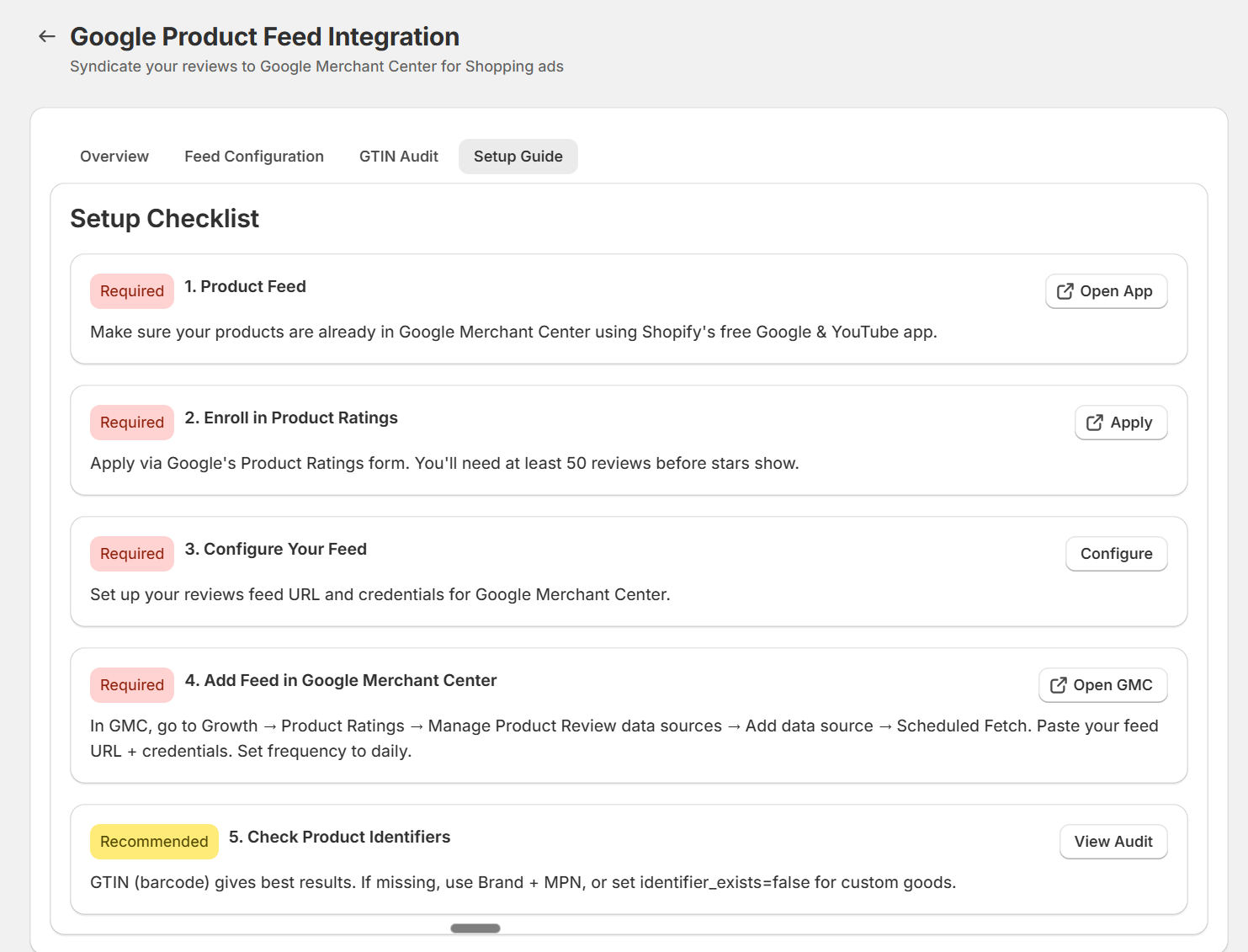
Follow this 5-step checklist to complete your Google Shopping integration.
Step 1: Product Feed (Required)
Ensure your products are already in Google Merchant Center using Shopify's free Google & YouTube app.
How to verify:
- Go to Google Merchant Center
- Check that your products appear under Products → All products
- If not set up, install the Google & YouTube app from the Shopify App Store
Step 2: Enroll in Product Ratings (Required)
Apply for Google's Product Ratings program via their official form.
Requirements:
- You need at least 50 reviews before stars will show
- Average rating must be 3.5 stars or higher
For more information, see Google's Product Ratings documentation.
Step 3: Configure Your Feed (Required)
Set up your reviews feed URL and credentials in Review Multiplier.
- Go to the Feed Configuration tab
- Generate credentials if not already created
- Copy and save the Feed URL, Username, and Password
Step 4: Add Feed in Google Merchant Center (Required)
Add your reviews feed to Google Merchant Center:
- Sign in to Google Merchant Center
- Navigate to Growth → Product Ratings
- Click Manage Product Review data sources
- Click Add data source → Scheduled Fetch
- Enter your feed details:
- Feed URL: Paste from Review Multiplier
- Username: Enter the generated username
- Password: Enter the generated password
- Fetch frequency: Set to Daily
- Save and submit
Step 5: Check Product Identifiers (Recommended)
Ensure your products have valid GTINs for optimal results.
- Go to the GTIN Audit tab
- Click Run GTIN Audit
- Fix any products with missing or invalid GTINs
- For custom products without GTINs, use Brand + MPN or set
identifier_exists=false
Frequently Asked Questions
How long until stars appear in Google Shopping?
After submitting your feed with 50+ reviews, Google typically takes 2-4 weeks to process and approve. Stars only display if your average rating is 3.5 stars or higher.
What if I don't have GTINs for my products?
- For branded products: Contact your supplier for barcode information
- For private label: Purchase GTINs from GS1
- For custom/handmade: Use Brand + MPN, or indicate
identifier_exists=false
See Google's GTIN requirements for detailed guidance.
How often is the feed updated?
Based on your Update Frequency setting:
- Daily (default): Every day at 2:00 AM
- Twice daily: 2:00 AM and 2:00 PM
- Manual only: Only when you click "Generate Feed Now"
Why aren't my reviews showing in Google Shopping?
Check this troubleshooting list:
- Review count: Do you have 50+ published reviews?
- Average rating: Is your average 3.5 stars or higher?
- Feed errors: Check Google Merchant Center for feed processing errors
- Product match: Do your products have valid GTINs matching your product feed?
- Approval status: Has Google approved your Product Ratings application?
You can validate your feed using Google's XML Validation tools.
Can I include Shop app reviews in the Google feed?
No. Google requires first-party reviews (reviews you collected directly). Shop app reviews are considered third-party and are automatically excluded from your feed. See Shop vs Google Reviews for more details.
What happens if I disable the feed?
When the feed is disabled:
- The feed URL returns an error
- Google Merchant Center will report fetch failures
- Your existing star ratings may eventually disappear from Google Shopping
Where can I learn more about Google's feed format?
- Product Review Feed Schema v2.4 - Technical XML structure
- Sample Feed File - Example feed for reference
- XML Validation - Validate your feed